


 Posts
Posts


If you own a Windows Computer
(PC) that always loses its time/date/year settings, then read this tutorial to
fix the issue. If your PC doesn't keep clock settings after shutdown it, then
probably the CMOS battery is dead. The CMOS battery is an internal battery on
your motherboard that provides power on the CMOS (Complementary Metal
Oxide-Semiconductor) chip. The CMOS chip, also known as "BIOS" chip,
is a little amount of memory which stores information about your system
configuration.
Windows time is wrong or clock
falls behind is an issue faced most in windows 7 and windows 10 operating
systems. Even though you try to set the correct time, it will be showing the
incorrect one once you restart the PC. Windows clock is located at the bottom right
corner of the screen. When you click on them you could normally see the clock
along with the calendar.
Time shown on the clock is set
either manually or by synchronizing automatically with the internet clock. It
has the tendency to go wrong mostly due to hardware errors. When this happens
certain web pages may fail to load. Therefore the user has to take immediate
measures to make it right.
Fast Solution on Motherboard :
If you set your motherboard
configuration with default setting at that time it will be probably displayed
at startup on your PC screen like this.


Now enter inter the bios setting by using hot key like F2 or other key which is given instruction on your screen. Now the screen will display like this...

Fix the time by tying from the
keyboard on the same format of H:M:S (Hour:Minutes:Second) and to fix for date DD/MM/YY (Date/Month/Year) & use hot Key F10 and Yes. After it will be
restart automatically and solved.
If not solved please follow these 5 ways
Method 1. Replace CMOS Battery.
The most commonly reason that
your computer loses the Time settings, is a damaged CMOS battery, especially if
the date resets to a date like 1/1/2009 and with time 00.00.00.
To find out if the CMOS battery
is off, enter BIOS setup and set the current Date, Time and Year. Then
"Save and Exit" from BIOS settings and then power off your computer.
Disconnect any power source from your computer and remove the battery also, if
you own a laptop computer. Leave your PC off for 2-3 hours and then power on it
again. If the time settings are wrong then probably the CMOS battery is dead.
To replace the CMOS battery:
1. Turn Off your computer.
2. Open your computer's case.
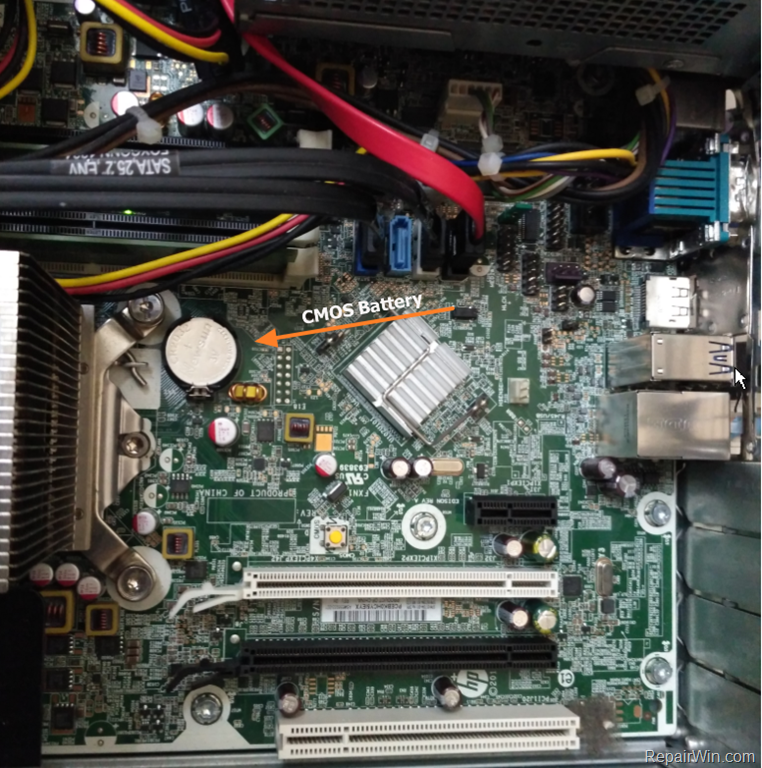
3. Find out where the CMOS battery sits on
motherboard. If you cannot find where the CMOS battery sits on motherboard,
then read the motherboard's manual.


4. Remove the battery from its place. *
* Note: In many conditions you have to push ahead the
CMOS Battery release lever to release the battery first.



Power On your system and then set
the time settings in motherboard if displayed in Startup black screen and after
that adjust date & time in control panel.
Method 2. Check CMOS Battery holder contacts.
The rarest cause that your PC
loses time, is that the contacts in the battery compartment have become loose
or broken. So, take the CMOS battery apart and check the CMOS battery contacts.
If the CMOS battery clips are not broken, then may have loosened (may not be
making contact). At this case, try to gently pull the contacts out or tighten,
depending on the case. Put the battery back and power on your computer.

Method 3. Set your current Time Zone with right real time.
If
the Time is displayed on Windows doesn't match the current time, then probably
you haven't set your current Time Zone on Windows. The Time Zone is used by
Windows to synchronize the Time by using an Internet Time Server. If the time
zone is wrong then your computer, after restart, resets the time for the
specified time zone
To Set the Time Zone.
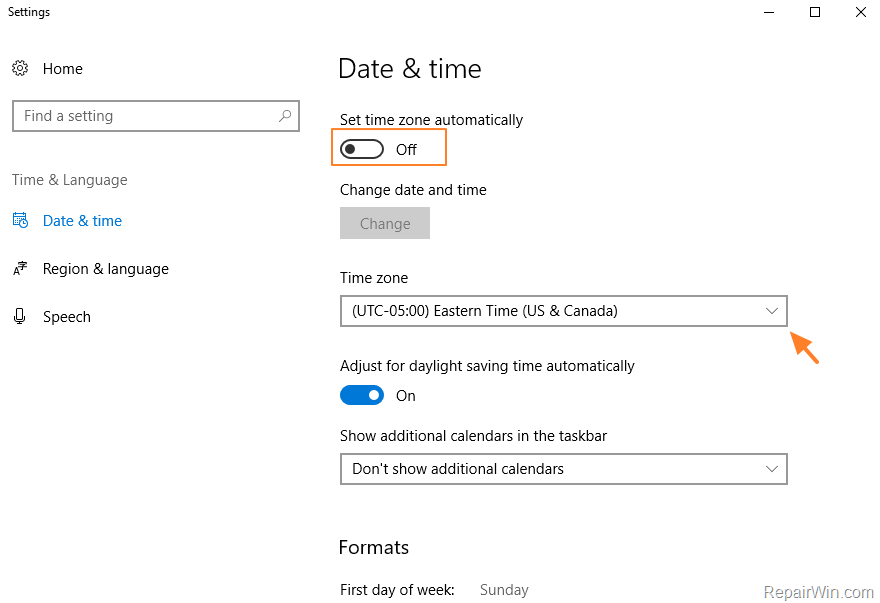
1. Right click at in the system clock at the taskbar and
select Adjust Date/Time.
2. Set the your current "Time Zone" *
* Note: If you are using Windows 10, then set the
"Set time zone automatically" option to OFF.

Method 4. Change Internet Time Server:
Windows can automatically
synchronize its settings by connecting to the time servers on the
internet. In fact it is the normal recommended way of providing the accurate
time. Sometimes due to the problems in the network, Windows can lose its
connection to the time servers. Because of this the clock may be displaying the
inaccurate time.
Therefore you have to manually
sync your computer with the internet time servers to display the accurate
time.
1. Go to the Search Bar
2. Type '' Control Panel ''
3. Select Clock and Region
4. Choose Date and Time
5. Head to the Internet Time tab
6. Press change settings
7. Ensure that the synchronize with an internet time server is selected
7. Ensure that the synchronize with an internet time server is selected
8. Choose time.nist.gov in the server
9. Press Update now and OK
Method 5. Check your Computer for Malware.
Another reason that WINDOWS
losing the time settings, is a Malware infection. To ensure that your computer
is virus/malware free and follow the steps. Please install the Malwarebytes to
clean viruses, through https://www.malwarebytes.com.
Post a Comment:
Leave your valuable message.We will reach you soon.